
Improve daily productivity with AI in Tools
Step 2 – Work Smarter
You’ve learnt to chat with AI. Now it’s time to put it where you actually work.
I know what you’re thinking – “Not another tool to learn.” I get it. But here’s the thing: this does not have to be about learning new tools. It’s about firstly making the ones you already use work harder for you, and if not then try upgraded or new tools that meet your specific task needs or goals.
That’s where AI in your tools can comes in. Not futuristic stuff – practical, everyday help that saves you genuine time.
Where to Start
Here’s what I recommend: start by checking what you already have, then fill the gaps.
First: Check your existing tools
Already paying for Microsoft 365, Google Workspace, ChatGPT or other IT system, Zoho, Hubspot? You might be surprised what AI features are already included or available as a small upgrade. This is always the best place to start because you’re not learning something completely new – you’re just making familiar tools more powerful and checking what features can help you..
Then: Identify your task gaps
Think about your typical week. How much time do you spend:
- Staring at a blank screen trying to write an email?
- Fiddling with spreadsheet formulas?
- Searching for the right image for a social post?
- Editing video for the third time because you said “um” too much?
Once you know what your existing tools can do matched to your task, you’ll spot the gaps. Maybe you need something specific for video editing, or data analysis, or creating images that the existing tools do not quite cut the mustard. That’s when you look at specialist tools for your specific task.
The reality: You’ll probably end up with a small toolset
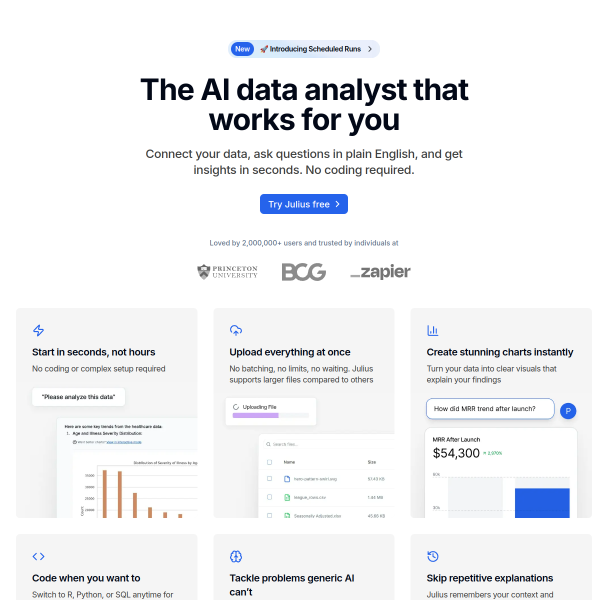
Most people settle on 3-5 tools they use regularly. Maybe Microsoft 365 with Copilot for documents and emails, Canva for graphics, and one specialist video or audio tool such as Synthesia, Descript. Or Google Workspace with Gemini, plus a couple of specialist AI tools for tasks their main platform doesn’t handle well, maybe data analysis with Julius.
You’ll find yourself reaching for certain tools for certain jobs. That’s normal. The key is keeping it manageable – not collecting subscriptions you don’t use.


ChatGPT

Pro


What Can You Actually Do With AI Tools?
AI now can generate and research content and information for you. Here are a few core generative areas that AI can help you with, in either your existing tools or specialist tools for your tasks. All the tools rely on asking AI in the right way – prompting.
Writing & Communication
What you might need to create: Emails, reports, social media posts, website copy, proposals, blog articles, product descriptions, newsletters
We all spend hours writing. The tricky bit isn’t just getting words down – it’s getting the right words, in the right tone, without twenty redrafts.
AI writing tools help you draft faster and improve clarity. Think of them as a writing partner who’s always available. You provide the ideas and direction; they help you express it clearly.
Some people do all their writing in Word or Google Docs with AI features. Others prefer specialist writing tools that offer more control or specific features. Many end up using both – their main platform for most writing, and a specialist tool for particular tasks like blog posts or marketing copy.
Images & Graphics

What you might need to create: Social media posts, posters, invitations, menus, logos, website headers, marketing materials, product mockups
Visual content matters, but not everyone’s a designer. And hiring designers for every social post isn’t realistic.
AI image tools have made this surprisingly accessible. You can create custom graphics, remove backgrounds, generate unique images from descriptions, or work from templates that look professional.
For most small businesses, one good design tool with AI features becomes their go-to for everything visual. But you might also have a specialist image generator for when you need something completely custom, or specific features your main tool doesn’t offer.
Video Content
What you might need to create: YouTube videos, social media clips, promotional videos, training content, product demos, explainer videos
Video gets attention, but it’s traditionally been the most intimidating content type. Recording, editing, getting the lighting right, dealing with background noise…
AI video tools have changed this completely. Some let you edit video by editing text (remove a sentence from the transcript, and it removes it from the video). Others create videos without you ever filming anything. Some just make editing much, much faster.
Video tools tend to be quite specialised, so you’ll likely pick one based on what type of video you create most. One tool might be perfect for podcast clips, another for social media content, another for professional presentations.

Audio & Podcasts
What you might need to create: Podcasts, podcast clips, meeting recordings, audiobooks, voiceovers, background music
Audio content is growing fast, but editing audio has always been technical. AI audio tools handle the fiddly bits – removing filler words, enhancing voice quality, transcribing conversations, even generating music.
Particularly useful if you run meetings and want searchable notes, create podcast content, or need voiceovers for videos. Some video tools also handle audio brilliantly, so there’s often overlap here.
Data & Spreadsheets
What you might need to create: Sales reports, trend analysis, charts and graphs, financial summaries, customer insights, inventory tracking
Spreadsheets are incredibly powerful, but let’s be honest – most of us only use about 10% of what they can do. Wrestling with formulas isn’t fun.
AI data tools let you ask questions in plain English. “Which products sold best last quarter?” “Show me customer growth over time.” The AI creates the charts and does the analysis.
If you already use Excel or Google Sheets, the AI features might handle 80% of what you need. For more complex data work, or pulling information from multiple sources, you might add a specialist data tool to your kit.
Research & Information

What you might need: Competitor analysis, market research, trend monitoring, content ideas, lead lists, price tracking
Research is essential but incredibly time-consuming. Whether you’re tracking competitors, gathering information for content, or staying on top of industry news, it eats hours.
AI research tools can monitor websites, track changes, summarise articles, and gather information automatically. They don’t replace your judgement, but they do the heavy lifting.
Your AI chat tool from Step 1 might already handle basic research, but if you’re doing this regularly, a dedicated research tool often becomes invaluable.
Presentations & Documents
What you might need: Client presentations, pitch decks, training materials, reports, meeting handouts
Creating presentations from scratch is tedious. You know what you want to say, but getting it into slides with decent formatting takes ages.
AI presentation tools can turn your outline or notes into a full presentation in minutes. You still review and adjust it, but the blank-slide-staring time disappears.
Most people start with the AI features in PowerPoint or Google Slides, then discover whether they need something more specialised for certain types of presentations.
How to Build Your AI Productivity Toolset
Here’s how I’d approach this:
Look at your actual week. Not what you think takes time, but what genuinely does. Write down the top three tasks that eat your hours. Use my Free Small Business AI Checklist
Before buying anything new:
- Do you have Microsoft 365? Check what Copilot features are included
- On Google Workspace? See what Gemini offers
- Use Adobe? Lots of AI features are already in there
- Other subscriptions? Google “[tool name] AI features”
Make a list of what your current tools can already do with AI. You might be surprised.
Now compare your time-draining tasks with what your existing tools offer. Where are the gaps?
Maybe your Microsoft tools handle documents beautifully, but you need something for video. Or Google Workspace covers most things, but you create a lot of custom images.
This is where my tool finder can help – it matches tools to your specific needs rather than overwhelming you with every option out there.
Pick one gap. Research 2-3 tools that address it. Start a free trial with the one that feels right.
“Using it properly” means actually using it for the task you got it for, repeatedly. Not exploring all its features. Not watching every tutorial. Just solving your problem with it.
After two weeks, ask yourself: “Did this save me time?”
If that first tool worked, great. Keep it. After a month or so, if there’s another gap causing you pain, repeat the process.
Don’t rush this. Three tools you use every week beats ten tools you sort-of tried.
What You’ll Probably End Up With
Most people I work with settle into a pattern something like this:
The foundation: Their main platform (Microsoft 365 or Google Workspace) with AI features, covering documents, emails, spreadsheets, and presentations.
The specialists: 2-3 additional tools for tasks their main platform doesn’t handle well. Commonly:
- A design/image tool (because visual content is constant)
- A video or audio tool (if they create this content regularly)
- A specialist for their specific industry needs
The favourites: Over time, you’ll notice you reach for certain tools for certain jobs. That’s your actual toolset. Everything else is just collecting digital dust.
What This Actually Costs
Let’s be realistic about money.
Foundation tools (Microsoft/Google with AI): Usually £15-25 per user per month. Sometimes already included.
Specialist tools: £10-30 per month each, depending on how much you use them.
Typical small business toolset: £40-80 per month total, covering 3-5 key tools.
Is it worth it?
If your toolset saves you five hours a week, that’s 20 hours a month. What’s your time worth? For most businesses, that math works out quickly.
But here’s the important bit: only pay for what you actually use. If you haven’t opened a tool in two weeks, cancel it. No guilt. Just cancel it.